Last updated: 2026-10-17
Toon, the Page Companion
Toon is a small line-drawn character who lives on the pages of this site. They stand to one side while you read, look at whatever you're looking at, and now and then wander off to point at something, comment on it, or take you through a page. A second look, Tonia, is a choice away in the settings. Both are the same figure with the same abilities.
Toon is optional, and can be switched off at any point. The Toon: ON/OFF button sits in the row of buttons at the top of every page, and the choice is remembered between visits. Visitors whose system asks for reduced motion start with Toon switched off.reduced motion is a system pref for accessibility
What they do
With nothing set up at all, Toon does the things below. Most of them start only after the page has been quiet for a while, and each can be switched off on its own in the settings, so a visitor who wants a calm page can keep just the ones they like.
- Watching. Toon looks at the part of the page nearest the middle of the screen, or at the mouse while it moves, and keeps out of the way of whatever is being watched.
- Strolls. After a quiet spell Toon walks to a heading, an image, a table, a code block or a link, points at it, and says or thinks something. A quiet moment can also end with a magnifying glass, a game of peekaboo from behind a box, a knock on the glass, or a nap. If you leave them alone for a while they may also pass the time: reading a book, playing with a yoyo, knitting, or hiding behind a box until your pointer comes near. Any scroll, key press or click puts the hobby away.
- Imagining where links lead. Beside a link, Toon may think "that reminds me of…", sometimes with a small live preview of the destination page in the thought bubble. On this site the suggestions come from the same connections that drive the Concept Atlas. When the preview ends, Toon may add where that page ends up, quoting its own conclusion (or, failing that, its closing sentence) in their own bubble. To do this they fetch the linked page once, from this site only, and read it in your browser.
- Reading the margin notes. Where a paragraph carries a handwritten aside, Toon looks at it through the magnifier and reads it out.
- Reacting to you. Select a phrase and Toon may comment on it. Click something and Toon goes to look. Come back to the tab after a while and there's a wave. Pages with heavy maths get "Uh oh, complicated maths!", and interactive toys get "Ooh, a toy to play with!".
- Remembering. Where Toon last stood and whether they were asleep are kept in your browser, and Toon follows you from page to page for about ten minutes.
Toon arrives by a door, a portal, stairs, a lift or a fire pole, and leaves by the door when you switch them off.
Guided tours and slides
Pages that have been prepared carry two further features. Both were written ahead of time, at the point the site is built, by a local language model, and every line was checked mechanically before it was accepted: length, banned wording, no copied runs from the page, no numbers that aren't in the text.
Guided tours. A short tour takes you through the key points of a page in order. Toon walks to each stop, the rest of the page dims, and one line is said or thought about it. Next and Back buttons (or the arrow keys) move you along, and Esc ends the tour. A page with several tours offers a menu.
The slideshow. Every substantial paragraph can be shown as a slide: a title, a few bullet points, and a brief explanation under each. The slide isn't the paragraph cut down. It restates what the paragraph establishes in a form that suits a screen. Each section heading becomes a divider slide with a two- or three-sentence summary of the section.
- Press Slideshow at the bottom left, or the small ▤ button that appears beside a paragraph when you point at it.
- Toon walks to the paragraph, the text it came from is picked out, and the slide opens out of it. Toon steps aside and points at each bullet while talking it through.
- It waits for you by default. Next, Back and End are on the bar at the bottom and on the keyboard (→, Space, PageDown, ←, PageUp, Esc).
- Auto moves on by itself, with more time for slides with more to read. The Slideshow pace slider in the settings makes that quicker or slower.
- Wand replaces the walking: a flourish, a puff of sparkles, and the page jumps straight to the next paragraph.
- The slideshow works whether Toon is awake, asleep or switched off. Without them the page simply scrolls to each paragraph.
Slides are laid out on a fixed 1280 by 720 canvas scaled to your window, in the page's own colours and fonts. A slide that needs more room than it has shrinks its type, down to 60 per cent, until it fits.tiny type hides errors proofread at native size
Configuring Toon
A ⚙ button appears beside Toon when you point at them or tab to them. It opens the settings panel, which has three parts, and every change takes effect straight away and is remembered the next time you visit the site.
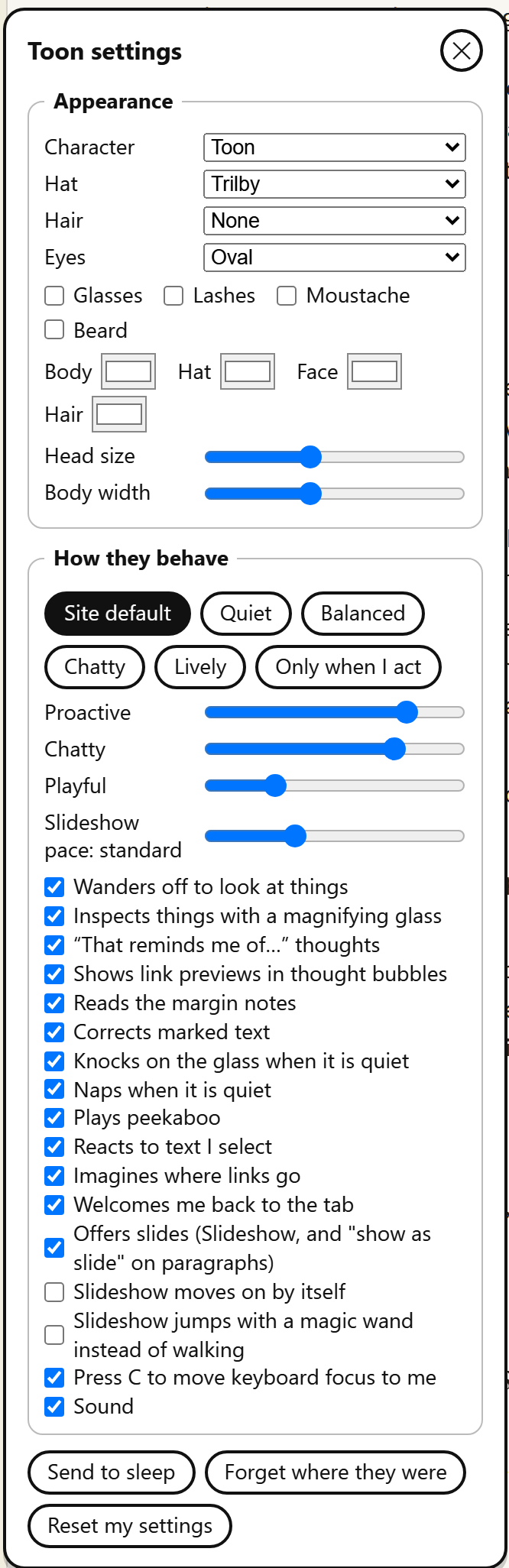
- Appearance. Character (Toon or Tonia), hat, hair, eyes, glasses, lashes, moustache, beard, colours, and the proportions of the head and body.
- How they behave. A personality preset (Quiet, Balanced, Chatty, Lively, Only when I act, or the site default), three sliders for how proactive, chatty and playful they are, and a switch for every behaviour above: strolls, the magnifier, "that reminds me" thoughts, link previews, margin notes, knocking, naps, peekaboo, hobbies, saying where a previewed page ends up, reactions to selected text, and so on. The slideshow switches and the pace slider are here too.
- The buttons at the foot. Send Toon to sleep, make them forget where they were, reset your settings, or turn Toon off.
Everything is stored in your browser and nothing is sent anywhere. Only when I act is the quietest setting that still leaves Toon on the page: they stay where they are unless you click, select text, or start a tour or slideshow.local only: no sync between devices
From the keyboard, press C to move focus to Toon (Esc takes you back to where you were), then Enter or Space to send them to sleep or wake them, and Tab to reach the settings button. The C shortcut can be switched off in the settings. It never fires while you're typing in a field or holding Ctrl, Alt or Cmd, and it stays quiet during a tour or slideshow, which have their own keys.1
Learning support
The aim is modest: to make a long page easier to enter and easier to move through, without changing what the page says or taking over the reading. Three features carry most of that, and each can be used on its own or left alone.
- An overview before the detail. A tour shows the shape of a page in a few stops, so you know what the long sections are for before you read them.
- Smaller pieces. A slide takes one paragraph's argument and separates its points, which suits a quick revision pass or a second look at something dense.
- Directed attention. The dimmed page and the spotlight tell you which paragraph is under discussion, and the pointing follows the bullet being read.
The research on animated characters in learning environments is mixed, and mostly about environments built for a single lesson rather than a site like this one. Lester and colleagues found in 1997 that 100 middle-school students had a more positive view of their learning experience when a lifelike character was present, even one that wasn't expressive, and called this the persona effect.2 A later meta-analysis of 43 studies with 3,088 participants found a small but statistically significant overall benefit for learning, larger for school students than for those in post-secondary education.3 Toon has not been tested with learners, so those findings are the grounds for the idea, not evidence that it works here.correlation is not causation; the effect may be mere novelty
The risk to attention
A moving character on a page you're trying to read is also a distraction, and the research points the same way. Material that is interesting but irrelevant to the point being taught, known as seductive details, reduced recall of the main ideas in a set of experiments by Harp and Mayer.4 A later meta-analysis found negative effects on both recall and transfer, and attributed them mainly to overload of working memory.5 A passing comment, a nap in the corner, or a thought about a link that leads away from the page can all play that part. Movement also draws the eye whether or not you meant to look.seductive details: interesting but irrelevant
The design leans against this in several ways:
- While you read, Toon stands to one side. Strolls start only after a spell of inactivity, and any scroll, key press or click interrupts them.
- Tours and slides hold to what the page says. The checks reject invented numbers and copied sentences, but they can't tell whether a summary is right, and the text isn't edited by hand. A summary can be wrong.
- Everything Toon does is optional and has a switch, and the quietest setting waits to be asked.
If Toon gets in the way of your reading, the quickest fixes are a click on them (they go to sleep and stay there), the Toon: OFF button, or the Quiet or Only when I act presets. Guidance on moving content asks for a way to pause, stop or hide anything that starts by itself and lasts more than five seconds; those three controls are that way here.6 The slideshow keeps working after Toon has gone.
Intentions and limits
Toon is an experiment in making a large, dense site feel inhabited and easier to enter, built with the same AI collaboration as the rest of the site. The tours, summaries and slides are an example of what that collaboration can produce at scale: a page-by-page layer of orientation that no one would write by hand for hundreds of pages. Any page without tours or slides hasn't been through that step yet.
Known limits: Toon hasn't been tested with screen readers or on phone-sized screens, and the live previews work only for pages on this site. If a tour or a slide disagrees with the page, the page is right.accessibility gap: untested with screen readers
References
-
World Wide Web Consortium. (2018). Understanding Success Criterion 2.1.4: Character Key Shortcuts, Web Content Accessibility Guidelines 2.1. https://www.w3.org/WAI/WCAG21/Understanding/character-key-shortcuts.html ↩
-
Lester, J. C., Converse, S. A., Kahler, S. E., Barlow, S. T., Stone, B. A., & Bhogal, R. S. (1997). The persona effect: Affective impact of animated pedagogical agents. In Proceedings of the SIGCHI Conference on Human Factors in Computing Systems (CHI '97) (pp. 359–366). ACM. https://chi1997.acm.org/proceedings/paper/jl.html ↩
-
Schroeder, N. L., Adesope, O. O., & Gilbert, R. B. (2013). How effective are pedagogical agents for learning? A meta-analytic review. Journal of Educational Computing Research, 49(1), 1–39. https://doi.org/10.2190/EC.49.1.a ↩
-
Harp, S. F., & Mayer, R. E. (1998). How seductive details do their damage: A theory of cognitive interest in science learning. Journal of Educational Psychology, 90(3), 414–434. ↩
-
Rey, G. D. (2012). A review of research and a meta-analysis of the seductive detail effect. Educational Research Review, 7(3), 216–237. https://doi.org/10.1016/j.edurev.2012.05.003 ↩
-
World Wide Web Consortium. (2018). Understanding Success Criterion 2.2.2: Pause, Stop, Hide, Web Content Accessibility Guidelines 2.1. https://www.w3.org/WAI/WCAG21/Understanding/pause-stop-hide.html ↩